> ## Documentation Index
> Fetch the complete documentation index at: https://docs.routera.io/llms.txt
> Use this file to discover all available pages before exploring further.
# Integrate calendars
> Connect Google Calendar or Microsoft Outlook so busy events update your availability for routing.
Connecting a calendar is optional but recommended. Routera reads busy events from your calendar and combines them with [working hours and out-of-office](/kb/user-availability) settings, so routers and assignments respect when you are actually free.
Each user connects their own calendar under **Settings** → **Profile** → **Calendar**.
You can connect **one** calendar provider at a time (Google **or** Outlook). To switch, **Delete** the current connection, then connect the other provider. **Microsoft 365** Outlook calendars are supported for Outlook; personal Microsoft accounts may not work.
## Connect a calendar
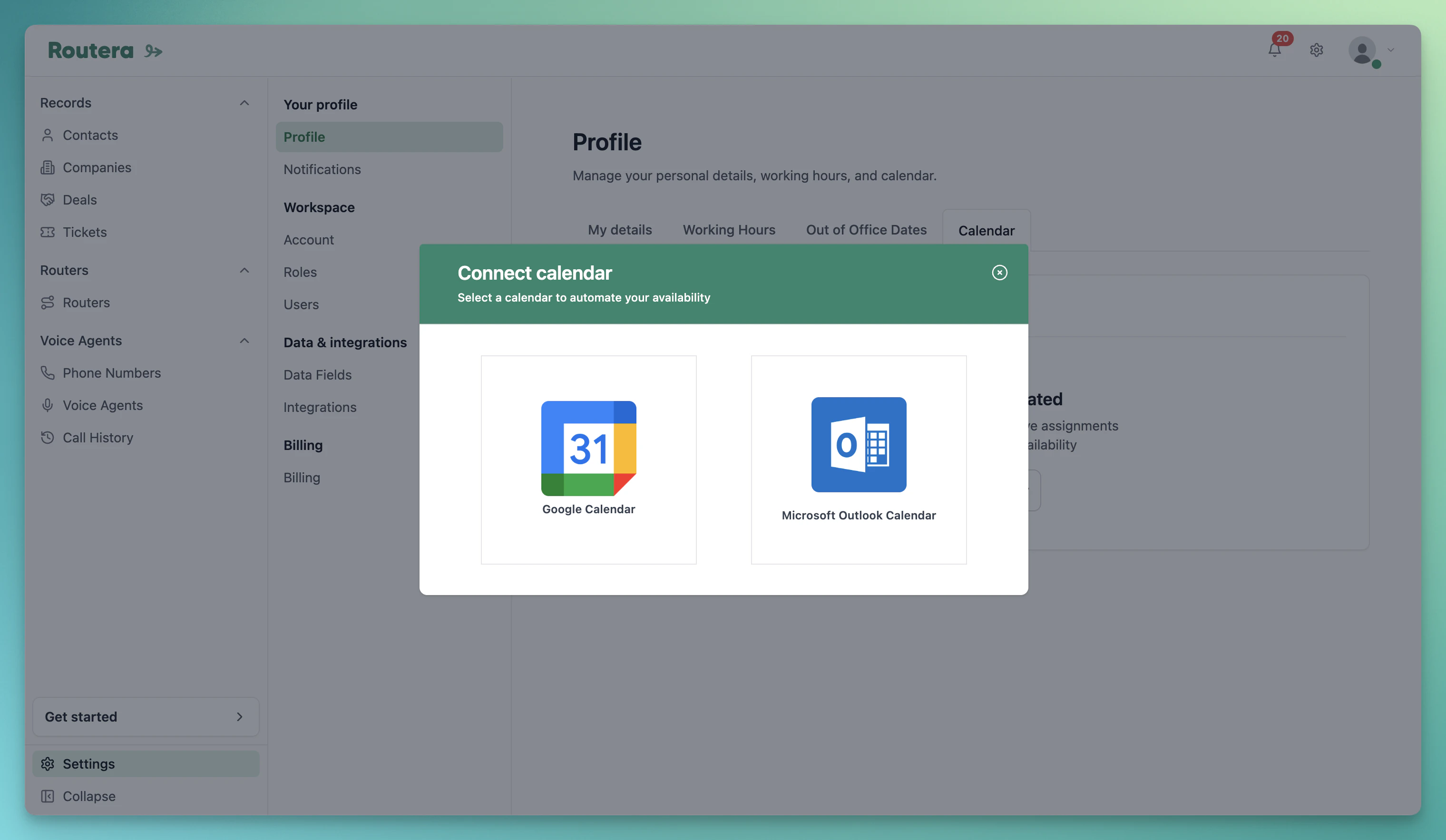
1. Open **Settings** → **Profile** → **Calendar**.
2. If nothing is connected yet, click **Connect Calendar**.
3. In the **Connect calendar** modal, choose **Google Calendar** or **Microsoft Outlook Calendar**.
4. Sign in when prompted and approve access:
* **Google** — use **Continue** in the Google account popup.
* **Outlook** — use **Accept** on the Microsoft consent screen (you are redirected back to Routera when finished).
5. When connection succeeds, a card appears for your provider with a short description of how events affect availability.
 ***
## Google Calendar availability settings
Google Calendar includes extra options for which events count as busy:
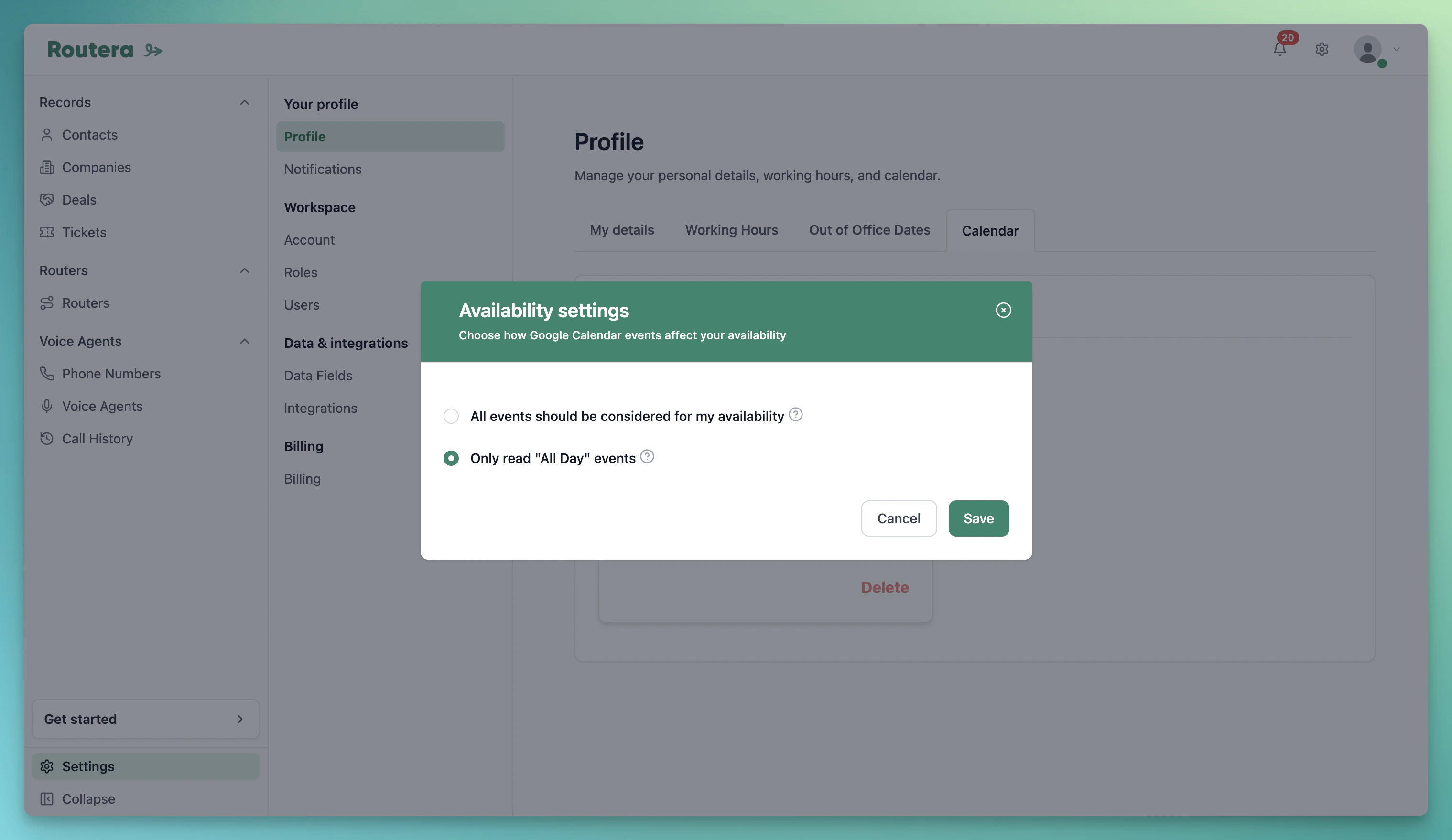
1. On the **Google Calendar** card, click the **settings** (gear) icon.
2. In **Availability settings**, choose one option:
* **All events should be considered for my availability** — any busy event on your calendar blocks assignment time.
* **Only read "All Day" events** — timed events during the day do not change availability; all-day busy events still do.
3. Click **Save**.
***
## Google Calendar availability settings
Google Calendar includes extra options for which events count as busy:
1. On the **Google Calendar** card, click the **settings** (gear) icon.
2. In **Availability settings**, choose one option:
* **All events should be considered for my availability** — any busy event on your calendar blocks assignment time.
* **Only read "All Day" events** — timed events during the day do not change availability; all-day busy events still do.
3. Click **Save**.
 Outlook uses the same busy-event sync behavior without this extra scope setting.
***
## Disconnect or change provider
1. On the connected calendar card, click **Delete**.
2. Confirm in the dialog (**Continue**).
3. Connect again with **Connect Calendar** if you want the same or a different provider.
***
## How calendars affect routing
Routera treats you as unavailable when:
* Your **Availability** toggle is off, or you are outside **working hours**, or an **out-of-office** period is active (see [User availability](/kb/user-availability)).
* Your connected calendar has a **busy** event during that time (according to the Google settings above, if applicable).
Routers that use **Overwrite only if current user is not available** rely on this combined picture. Connect your calendar before going live on rotation so assignments match real availability.
Set **Working Hours** and connect a calendar for each rep who receives routed records. Managers can edit another user’s schedule under **Settings** → **Users** → **Working Hours** / **Out of Office Dates**, but each user connects their own calendar on **Profile** → **Calendar**.
Outlook uses the same busy-event sync behavior without this extra scope setting.
***
## Disconnect or change provider
1. On the connected calendar card, click **Delete**.
2. Confirm in the dialog (**Continue**).
3. Connect again with **Connect Calendar** if you want the same or a different provider.
***
## How calendars affect routing
Routera treats you as unavailable when:
* Your **Availability** toggle is off, or you are outside **working hours**, or an **out-of-office** period is active (see [User availability](/kb/user-availability)).
* Your connected calendar has a **busy** event during that time (according to the Google settings above, if applicable).
Routers that use **Overwrite only if current user is not available** rely on this combined picture. Connect your calendar before going live on rotation so assignments match real availability.
Set **Working Hours** and connect a calendar for each rep who receives routed records. Managers can edit another user’s schedule under **Settings** → **Users** → **Working Hours** / **Out of Office Dates**, but each user connects their own calendar on **Profile** → **Calendar**.