> ## Documentation Index
> Fetch the complete documentation index at: https://docs.routera.io/llms.txt
> Use this file to discover all available pages before exploring further.
# User availability
> Set working hours and out-of-office periods so routing assigns records at the right times.
Availability controls when someone can receive assignments. Routera uses the **Availability** toggle, **timezone**, **working hours**, and any **out-of-office** periods together.
## Your working hours
1. Open **Settings** → **Profile** → **Working Hours**.
2. Turn **Availability** on or off, set your **timezone**, and add blocks with **+ Add Hours** (day or day range, start time, end time).
3. Click **Save**.
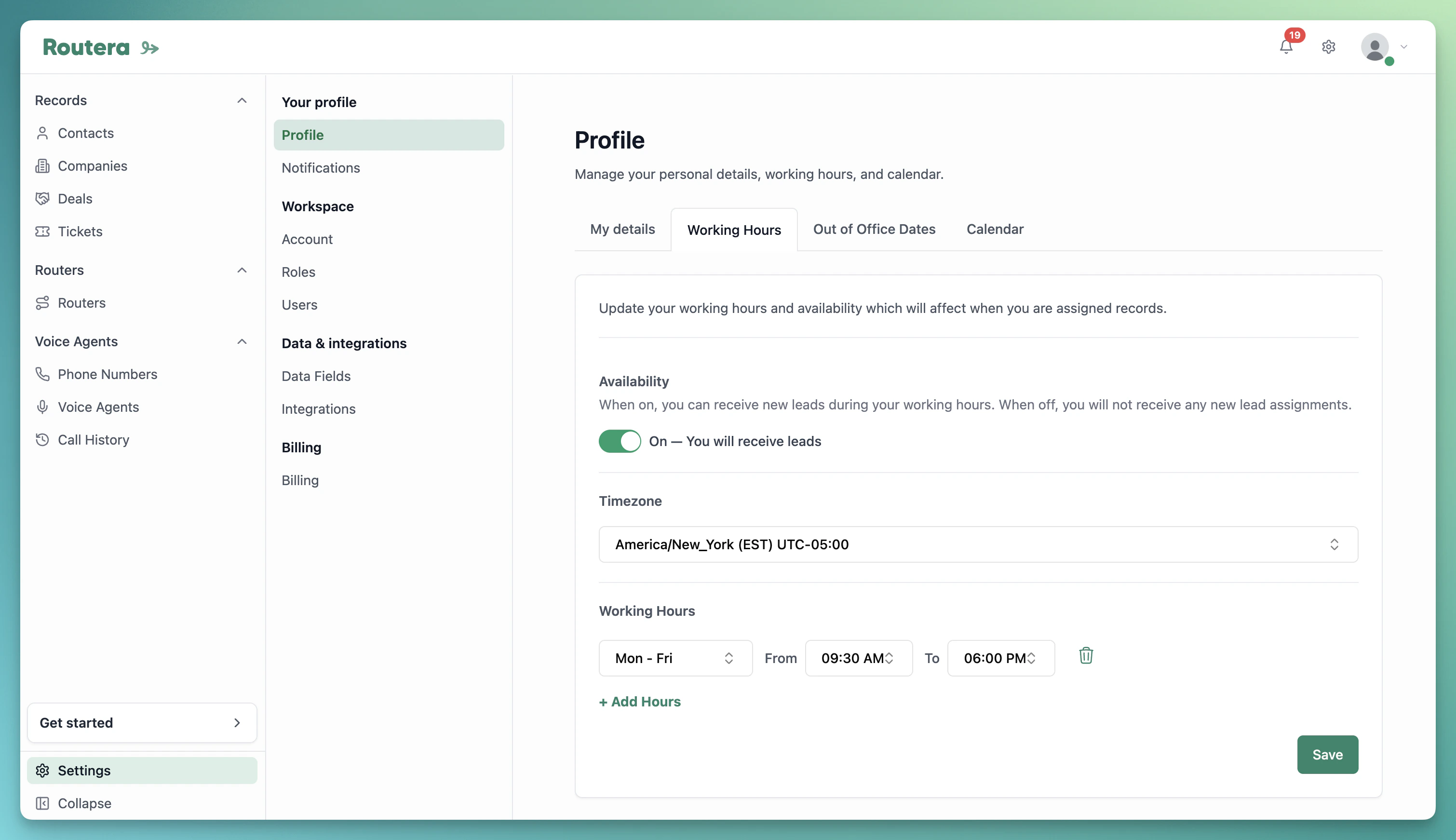 When **Availability** is on, assignments can occur only during your working hours (in your timezone). When it is off, you will not receive new assignments regardless of the schedule.
## Out of office
1. Open **Settings** → **Profile** → **Out of Office Dates**.
2. Select a date range and optional start/end times, then click **Add period**.
3. Edit or delete existing periods in the list below.
When **Availability** is on, assignments can occur only during your working hours (in your timezone). When it is off, you will not receive new assignments regardless of the schedule.
## Out of office
1. Open **Settings** → **Profile** → **Out of Office Dates**.
2. Select a date range and optional start/end times, then click **Add period**.
3. Edit or delete existing periods in the list below.
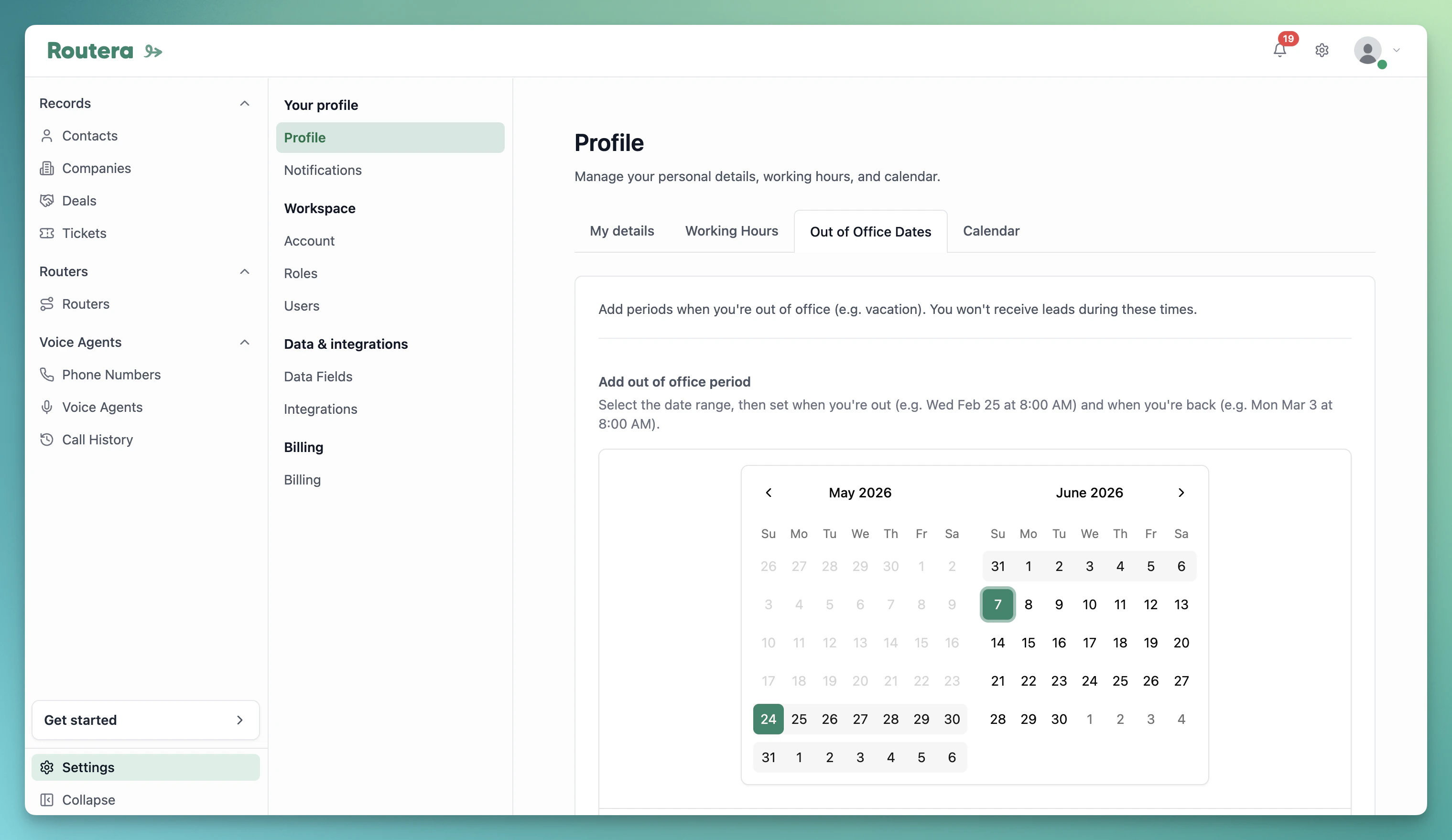 You will not receive assignments while an out-of-office period is active.
## Another user's availability
Administrators and team managers can update someone else's schedule:
1. Open **Settings** → **Users** and click the user.
2. Use the **Working Hours** or **Out of Office Dates** tab.
3. Make changes and click **Save** (working hours) or **Add period** / **Update period** (out of office) as needed.
Set availability before you publish routers so distribution respects when reps are actually reachable. See [Creating teams](/kb/creating-teams) for how managers can manage member schedules.
You will not receive assignments while an out-of-office period is active.
## Another user's availability
Administrators and team managers can update someone else's schedule:
1. Open **Settings** → **Users** and click the user.
2. Use the **Working Hours** or **Out of Office Dates** tab.
3. Make changes and click **Save** (working hours) or **Add period** / **Update period** (out of office) as needed.
Set availability before you publish routers so distribution respects when reps are actually reachable. See [Creating teams](/kb/creating-teams) for how managers can manage member schedules.