Accessing the Capacities Page
To access the Capacities page, follow these steps:- In the left sidebar, click Settings , then click on the Users tab
- Select the Capacities sub-tab
Understanding Capacities
A capacity is a limit configuration that tracks how many records match specific criteria based on field values. Capacities can be based on:- Enumeration fields: Track capacity based on specific dropdown/select field values
- Number fields: Track capacity based on numeric field values with optional maximum limits
Creating a New Capacity
Step 1: Open the Create Dialog
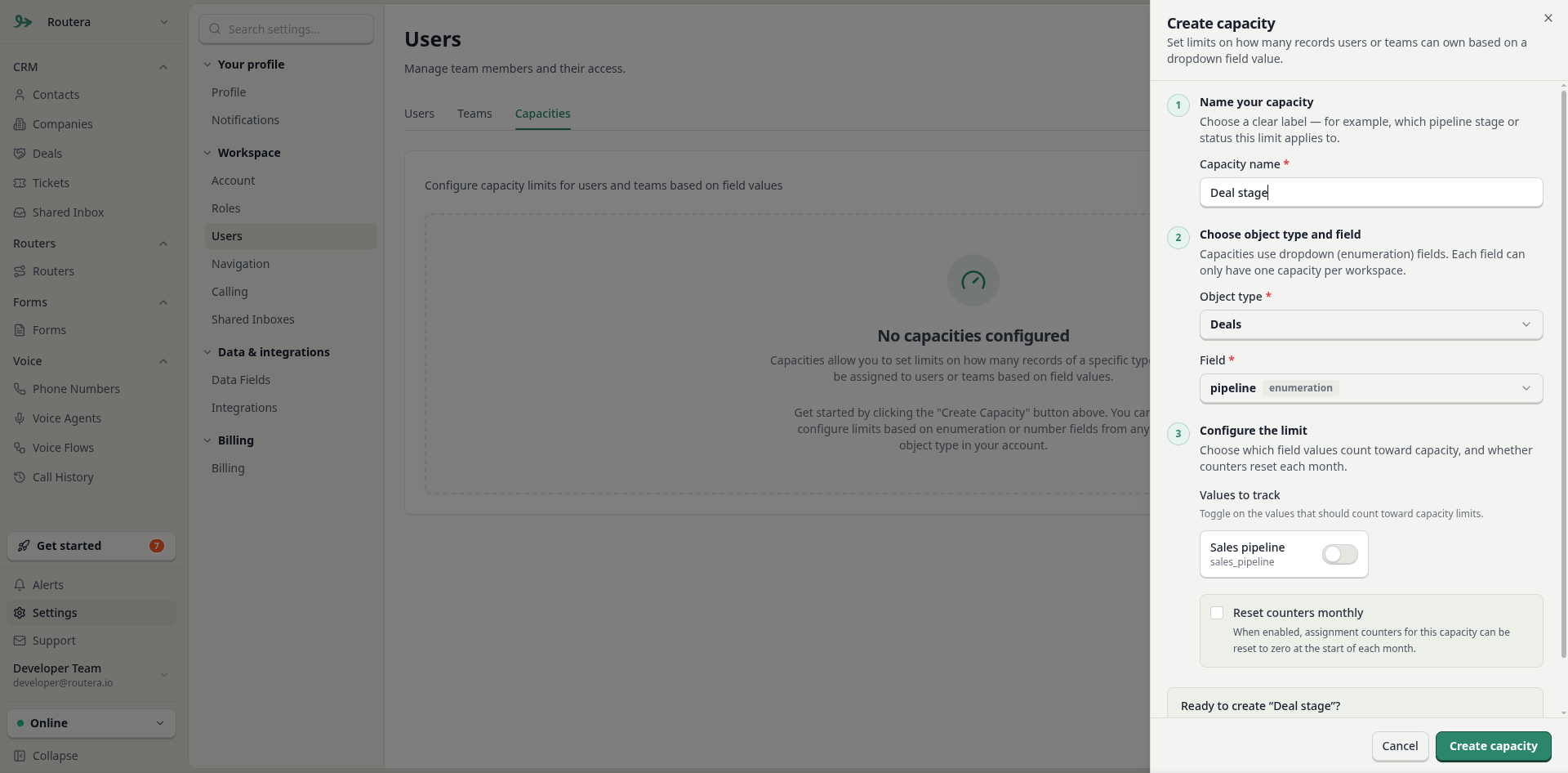
On the Capacities page, click the Create Capacity button located in the top-right corner. The Create Capacity dialog will open.Step 2: Configure Basic Information
-
Capacity Name: Enter a descriptive name for your capacity (e.g., “Active Deals Capacity” or “Support Tickets Capacity”)
- The name can be auto-filled based on the selected field, but you can customize it
-
Object Type: Select the object type that contains the field you want to track
- Only object types available in your account will be shown
- If no object types are available, you’ll need to configure them first
-
Field: Select an enumeration field from the chosen object type
- Only enumeration fields that don’t already have a capacity are available
- The field type is displayed next to each field name
Step 3: Configure Field Values (Enumeration Fields)
For enumeration fields, you’ll need to specify which field values should be counted towards capacity:- A list of all available values for the selected field will be displayed
- Toggle the switch next to each value to enable or disable it for capacity tracking
- Only enabled values will count towards capacity limits
- You can enable multiple values if needed
Step 4: HubSpot Integration Warning (if applicable)
If you have HubSpot integration enabled and the selected field is not mapped to HubSpot:- A warning message will appear
- You’ll see a link to configure the field mapping in Integration Settings
- It’s recommended to configure the mapping to ensure values sync correctly
You can connect your HubSpot account by following the instructions in this article.
Step 5: Save the Capacity
Review your configuration and click Create Capacity to save. The capacity will appear in the capacities list.You’ve now created your first capacity.
Assigning Capacities to Users and Teams
Once a capacity is created, you can assign it to individual users or teams with specific maximum capacity limits.Adding a User Assignment
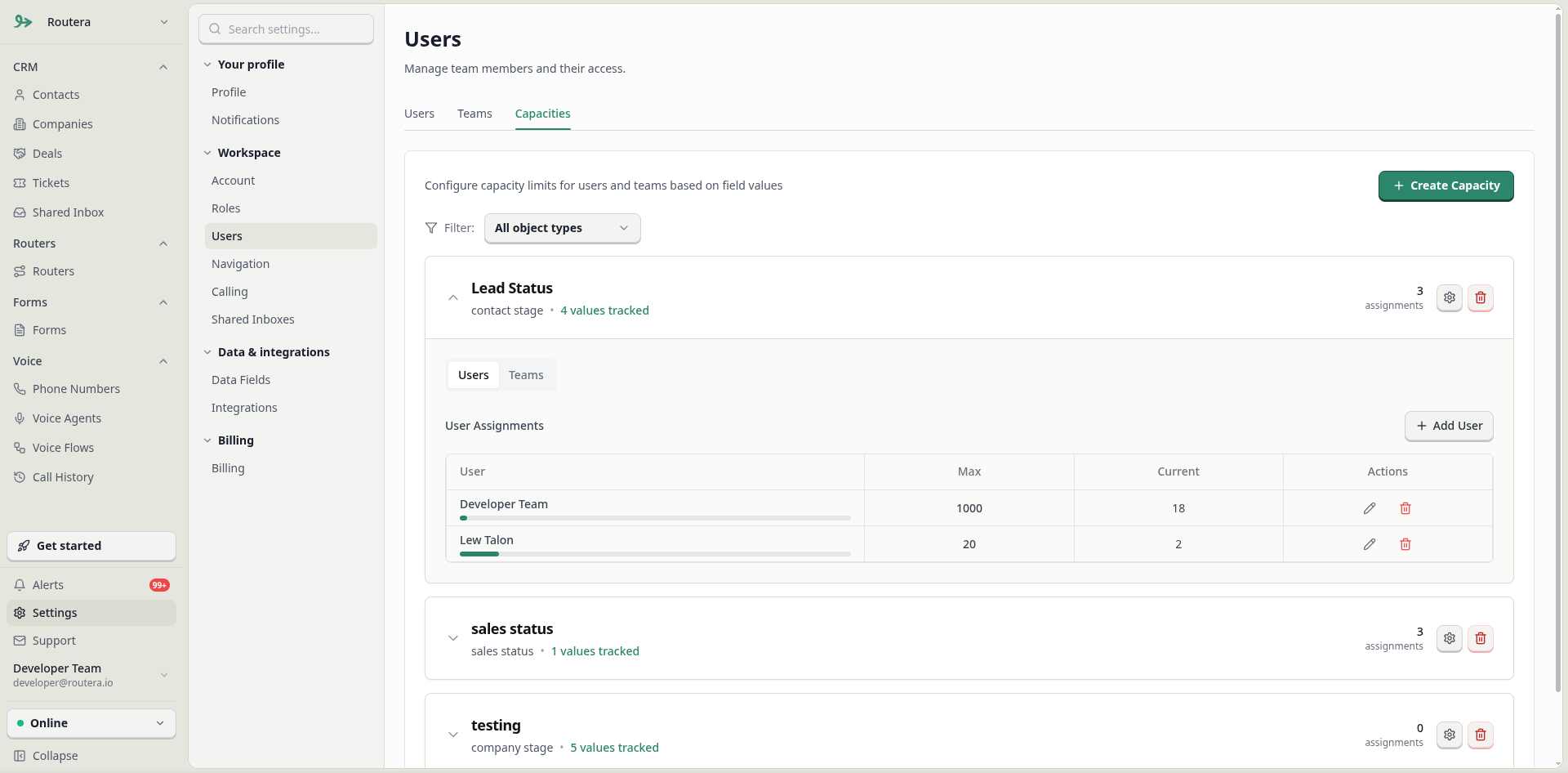
- Find the capacity card in the list and click to expand it (or it may already be expanded)
- Click on the Users tab within the capacity card
- Click the Add User button
- In the new row that appears:
- Select a user from the dropdown (only users not already assigned are shown)
- Enter the Max capacity value (the maximum number of records this user can handle)
- Click the Save icon to confirm, or Cancel to cancel
Adding a Team Assignment
- Find the capacity card and expand it
- Click on the Teams tab within the capacity card
- Click the Add Team button
- In the new row that appears:
- Select a team from the dropdown (only teams not already assigned are shown)
- Enter the Max capacity value
- Click the Save icon to confirm, or Cancel to cancel
Understanding Capacity Display
Each assignment shows:- User/Team Name: The assigned user or team
- Max: The maximum capacity limit set for this assignment
- Current: The current number of records matching the capacity criteria
- Progress Bar: A visual indicator showing capacity usage:
- Green: Below 70% capacity
- Yellow: 70-89% capacity
- Red: 90% or above capacity
Editing Capacity Assignments
Updating Maximum Capacity
- Find the capacity and expand it
- Navigate to the Users or Teams tab
- Click the Edit icon next to the assignment you want to modify
- The Max value will become editable
- Enter the new maximum capacity value
- Click the Save icon to confirm, or Cancel to cancel
Removing an Assignment
- Find the capacity and expand it
- Navigate to the Users or Teams tab
- Click the Delete icon next to the assignment you want to remove
- The assignment will be deleted immediately
Editing Capacity Configuration
You can modify a capacity’s name and field value configuration:- Find the capacity card in the list
- Click the Settings icon in the top-right corner of the capacity card
- The Edit Capacity dialog will open
- Modify the capacity name or field value configuration as needed
- Click Save to apply changes
You have successfully modified your capacity.
Deleting a Capacity
- Find the capacity card in the list
- Click the Delete icon in the top-right corner of the capacity card
- The capacity and all its assignments will be permanently deleted
Deleting a capacity will remove all user and team assignments associated with it.
You have successfully deleted your capacity.
Filtering Capacities
If you have capacities for multiple object types:- Use the Filter dropdown at the top of the capacities list
- Select an object type to filter by, or choose “All object types” to see everything
- The list will update to show only capacities for the selected object type
- A count indicator shows how many capacities match the filter
Capacity Status Indicators
Color-Coded Progress Bars
- Green: Current usage is below 70% of maximum capacity
- Yellow: Current usage is between 70-89% of maximum capacity
- Red: Current usage is 90% or above maximum capacity
Current Count Display
The Current column shows the actual number of records matching the capacity criteria:- Numbers are color-coded to match the progress bar status
- Red text indicates critical capacity levels (90%+)
- Yellow text indicates approaching capacity (70-89%)
- Gray text indicates normal levels (below 70%)
Best Practices
- Meaningful Names: Use descriptive capacity names that clearly indicate what is being tracked
- Regular Monitoring: Check capacity levels regularly to prevent over-allocation
- Realistic Limits: Set maximum capacity values based on actual workload capabilities
- Field Mapping: Ensure enumeration fields are properly mapped in HubSpot integration settings if using HubSpot
- Value Selection: Only enable field values that are relevant for capacity tracking
- Team vs User: Consider whether team-level or user-level assignments are more appropriate for your use case
Troubleshooting
No Object Types Available
- Ensure object types are configured in your account settings
- Contact your administrator if object types are missing
No Enumeration Fields Available
- The selected object type may not have enumeration fields
- All enumeration fields may already have capacities assigned
- Check other object types for available fields
Field Not Mapped to HubSpot
- If you see a warning about field mapping, configure it in Settings > Integrations
- This ensures values sync correctly between systems
Capacity Not Updating
- Current capacity counts are calculated based on records matching the enabled field values
- Ensure records have the correct field values set
- Check that the field values are enabled in the capacity configuration
Permissions
The Capacities feature requires appropriate permissions:- View: View capacities and assignments
- Create: Create new capacities and assignments
- Update: Edit existing capacities and assignments
- Delete: Remove capacities and assignments