Documentation Index

Fetch the complete documentation index at: https://docs.routera.io/llms.txt

Use this file to discover all available pages before exploring further.

Editing a router uses the same editor as Creating routers. You can change configuration, users, model, and mode-specific tabs (Enrollment Trigger or Account Matching) anytime; Save keeps a draft, Publish applies changes to live routing.

Edit a router

  1. Open Routers in the sidebar.
  2. Click the router name (or use Edit on the row) to open the editor.
  3. Update tabs as needed. See Creating routers for what each tab controls.
  4. Click Save to store changes without affecting live behavior on a published router.
  5. If the router is unpublished, click Publish when you are ready to go live. If it is already published, saved changes apply to the next assignments Routera processes.
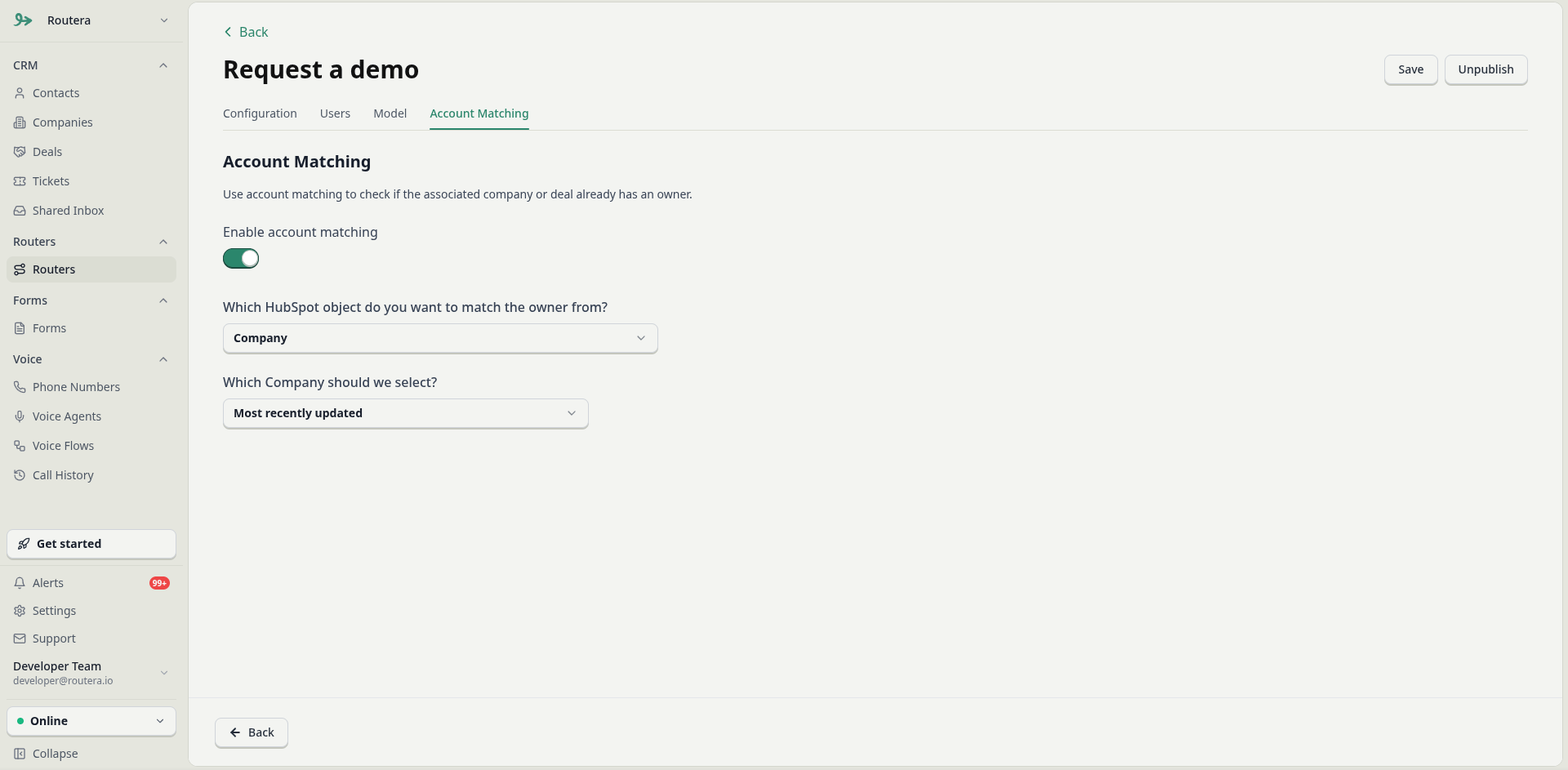
Router editor with Save, Publish, and Unpublish

Publish and unpublish

ActionWhen to use
PublishTurn on or restore live assignments for this router.
UnpublishStop new assignments; configuration is kept so you can edit and publish again later.
You cannot switch between Routera only and HubSpot CRM after creation. Create a new router if you need a different mode.
For Routera only routers, changing Enrollment Trigger after publish affects which records enroll going forward. For HubSpot CRM, enrollment scope is controlled in your HubSpot workflow as well as Routera settings.

Delete a router

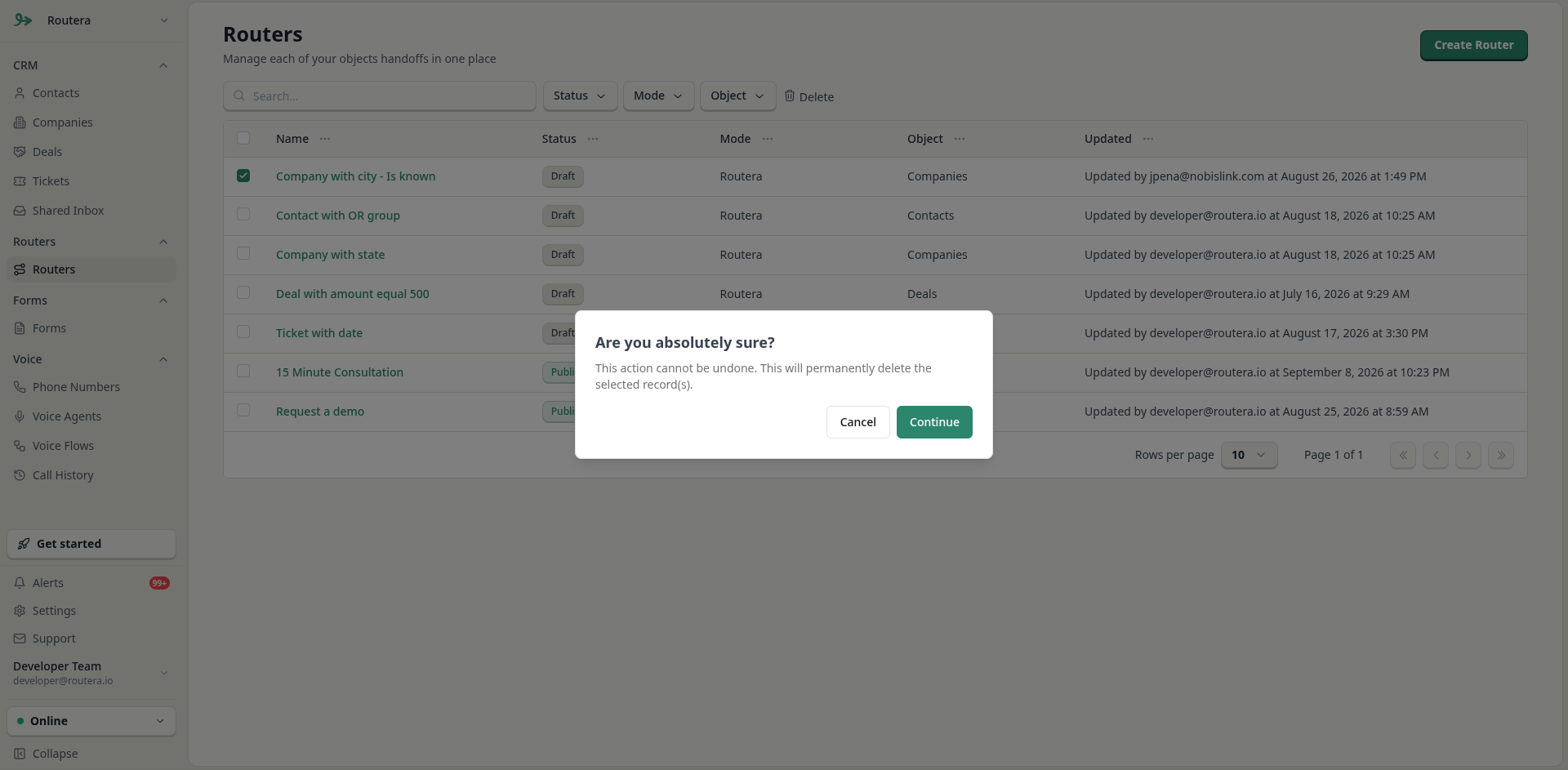
  1. On the Routers list, select the router with its checkbox.
  2. Click Delete and confirm.
Routers list with router selected and Delete
Deleting a router cannot be undone. Remove or update any HubSpot workflows that reference it before you delete a CRM router.